 Patchman
Your first useful result
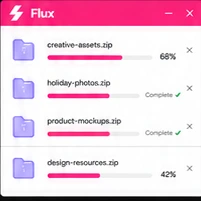
A useful download workflow keeps the source, progress and finished file recognisable. Begin with one authorised direct link, then inspect its transfer before submitting a batch. Flux keeps input choices and queue controls together so switching a panel does not hide the work you are monitoring.
Identify the source before choosing a mode
A webpage address is not necessarily a direct downloadable file. Use Direct for an HTTP file link or the supported Cloud route when the source requires a connected provider. Review sources actually offered in the interface. A familiar-looking URL does not establish authorization, format compatibility or support for every host.
Paste one link and review its details
Paste the address into the composer and inspect the returned name, source and available size or type information before starting. For a release pack, begin with one known archive. Never place private service credentials into an ordinary public link field or send a signed source URL to support as part of an unredacted screenshot.
Use Batch or a prepared manifest
Batch turns a list into a manageable queue. Review invalid and duplicate entries before confirming accepted items. Importing a .flpm package from the header provides another entrance for a prepared download manifest. Inspect its contents as carefully as pasted links, particularly when someone else created it. One valid entry does not establish that every item is usable.
Filter by status and open the transfer
Use status and category filters to find the job that needs attention, then clear them to review the complete batch. A filtered empty list does not mean the work disappeared. Distinguish queued, active, paused, failed and completed items. Open transfer details for the available actions rather than reading a single progress number as the whole outcome.
Pause, resume and retry selectively
Whether a source can resume depends on range support, continued access and availability. An expired signed link can require a fresh source. Inspect the last outcome before retrying; one failed item does not justify restarting every completed download. Check whether a delayed request already produced a file so a retry does not create confusing duplicate work.
Verify the delivered file and any charge
Open or download the completed result and confirm its name and contents. A playable preview and an archived original serve different purposes. Review displayed cost information when a selected supplier charges for an operation; deterministic browser actions do not imply every connected service is free. Keep an independent delivery copy and use a safe job reference for support.
Common questions
Should I restart a whole batch after one failure?
No. Inspect individual outcomes and retry affected items after resolving their cause.
Where is the written guide during work?
Keep this article open, or replay the interface walkthrough from Help in Flux when you need the controls highlighted.
Continue with Flux
In the app, Help can replay its guided walkthrough while this written reference stays available separately. Review the Flux product page for the wider workflow, or open Flux to begin.
Choose a direct or cloud workflow
For identity and balance questions, read Patchman Account help. If a problem remains, contact support@patchman.io with the app name, a safe reference and its support code.