 Patchman
The toolkit / Repaint RepaintBY PATCHMAN
RepaintBY PATCHMANChange the part that changes the picture.
Build a precise selection before changing an object’s colour, position or size. Repair exposed areas, compare the result and keep masks, objects and history in the same project.
MAKE ROOM FOR THE GOOD PART.
A focused workspace.
A little more control.
Recolour, blend, move, rotate and duplicate selected objects.
Repair small gaps with Telea or Navier–Stokes methods.
- Select the region and refine its boundary.
- Recolour or rearrange the active object.
- Repair gaps, compare and export the image.
LEARN THE WORKFLOW
From the first step
to the finished file.
Repaint · Preview guideRead guideRepaint · WorkflowRead guideRepaint · Tool guideRead guideRepaint · Tool guideRead guideRepaint · Tool guideRead guideRepaint · Tool guideRead guideRepaint · Tool guideRead guideRepaint · Tool guideRead guideRepaint · Tool guideRead guideRepaint · Tool guideRead guideRepaint · Tool guideRead guide
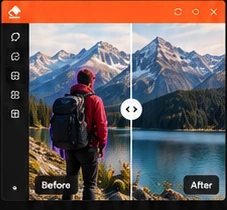
Use the Repaint before-and-after comparison
Inspect the sample cleanup and learn what to check in a finished edit.
Plan a photo cleanup
Remove a distraction while preserving believable scenery.
Select an object with the Repaint brush
Use Brush in the documented Repaint editor to control a photo cleanup.
Correct an Repaint selection
Use Eraser in the documented Repaint editor to control a photo cleanup.
Select a rectangular region for cleanup
Use Rectangle in the documented Repaint editor to control a photo cleanup.
Select an irregular region with a polygon
Use Polygon in the documented Repaint editor to control a photo cleanup.
Select a wire or narrow distraction
Use Line in the documented Repaint editor to control a photo cleanup.
Review an automatically detected fence or wire
Use Fence/wire detection in the documented Repaint editor to control a photo cleanup.
Compare Repaint cleanup methods
Use Inpainting method in the documented Repaint editor to control a photo cleanup.
Zoom and pan while selecting an object
Use Zoom and pan in the documented Repaint editor to control a photo cleanup.
Compare and export an Repaint edit
Use Compare and export in the documented Repaint editor to control a photo cleanup.
Practical notes.
Follow the Repaint walkthrough
Refine selections, recolour or transform an object, repair exposed regions and compare the finished image in a saved Repaint project.